Go straight to Checkout.
Enter “Checkout” in Search profiles. In this example, only Checkout - Windows remains in the table.
Bring your QA preparation into TERNYLO. Give each test context a named configuration, keep the instructions with it, and find the right record when it is time to work. This three-profile walkthrough fits Starter or any higher active plan. A confirmed crypto payment is required before creating profiles.
A Release QA group containing three named configuration records, each with a target system and instructions, plus a JSON copy you can inspect outside TERNYLO.
First, activate a paid plan through Plan & payments and wait for your crypto payment to be confirmed. Then open Browser profiles and select New profile. Add the three records below. Enter Release QA in the Group field each time to keep the project together.
| Profile name | Target system / location | What to record |
|---|---|---|
| Checkout - Windows | Windows / France | Checkout labels, selected currency and network instructions. |
| Account - macOS | macOS / Canada | Sign-in, account details and navigation observations. |
| Dashboard - Linux | Linux / France | Profile search, group filtering and JSON export instructions. |
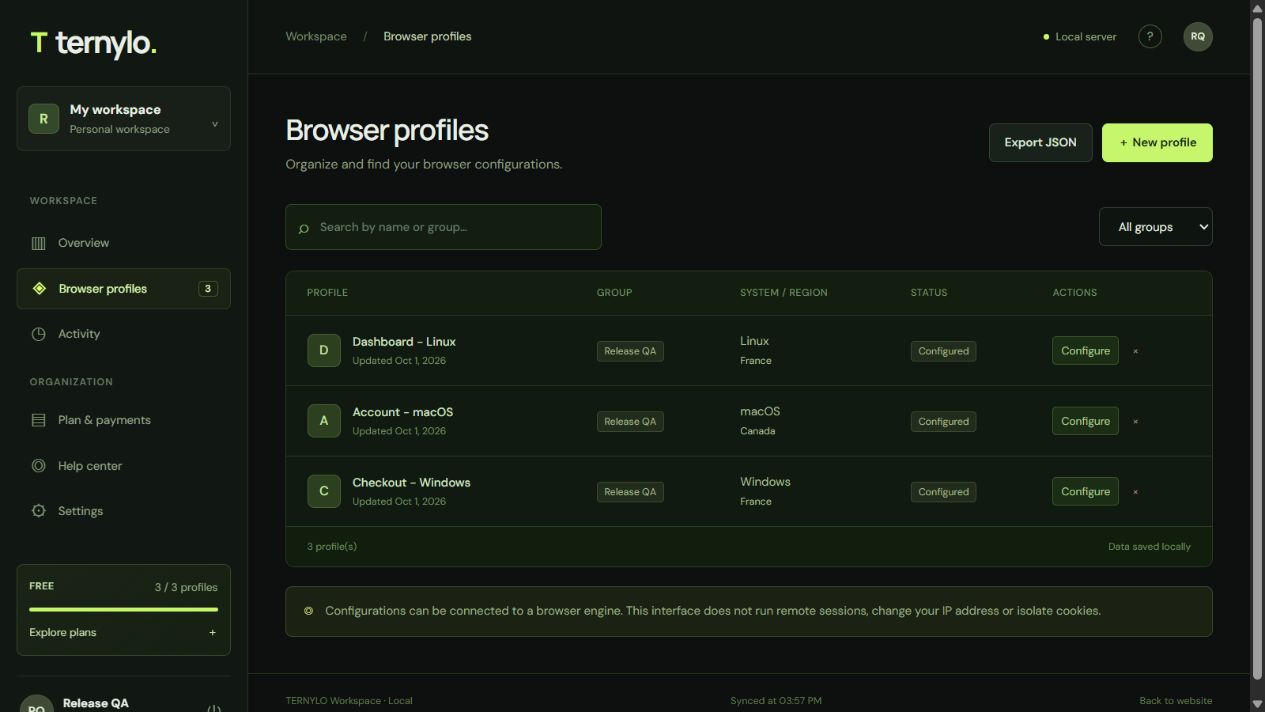
Use names that tell you what the record is for. For this project, the feature comes first and the target system follows. Keep the same pattern as your inventory grows.
Select Configure on Checkout - Windows. The Notes field is where you keep the task, expected result and anything you need to remember when you return.
Review the checkout labels and the payment network instructions. Expected result: the chosen currency and network remain clearly visible.
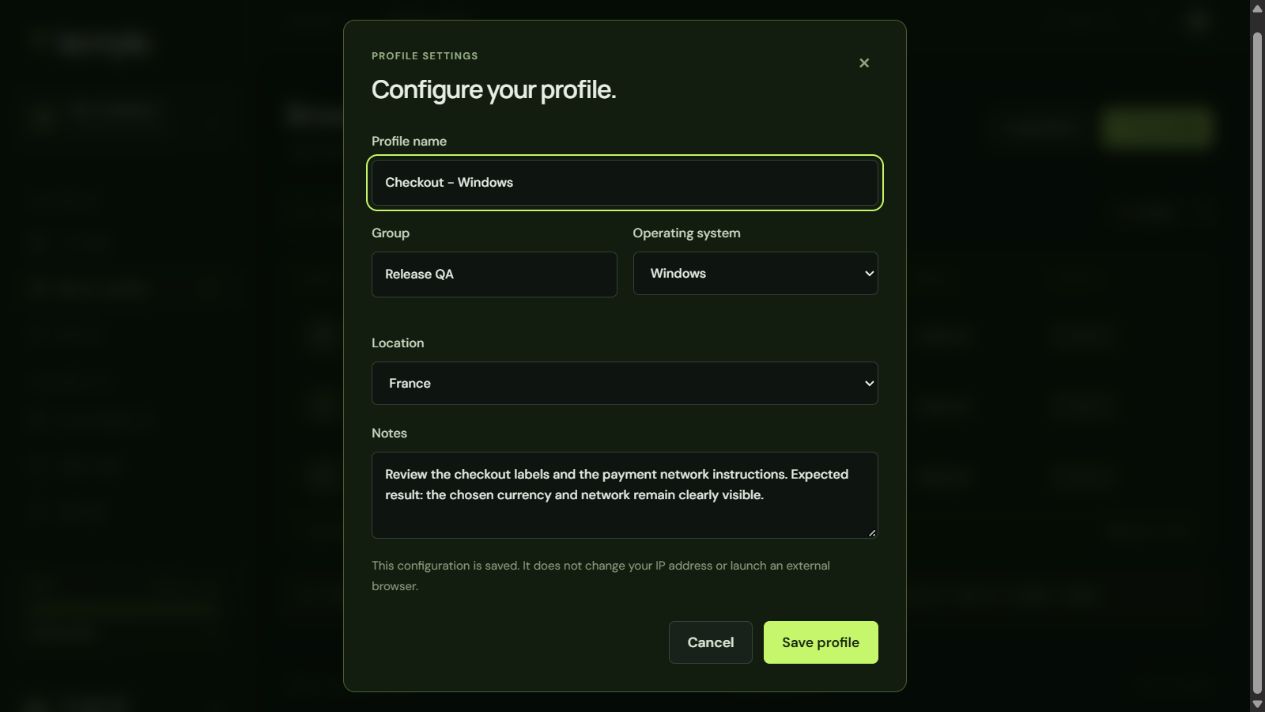
Update the notes as you refine the task, then select Save profile. TERNYLO keeps the configuration and records the profile update in Activity. Carry out the actual browser tests in your chosen testing tools; TERNYLO organizes the preparation and reference information.
Enter “Checkout” in Search profiles. In this example, only Checkout - Windows remains in the table.
Clear the search and choose Release QA in Filter by group. All three configurations appear together.
Sign out, sign in again and open Configure. Your saved fields and revised notes are still there.
TERNYLO searches profile names and group names. Use those fields for the terms you need to find quickly, and use Notes for the detailed instructions.
Select Export JSON from Browser profiles. TERNYLO downloads the configuration records in your account, including their names, groups, target systems, locations, notes and creation timestamps. Export includes every profile in the account, regardless of the current search or group filter.
Inspect the exact export from this demonstration, then recreate the fields with your own project details.
The sample contains demonstration data only. It is a reference export, not an import file or a complete workspace backup. TERNYLO does not currently offer JSON import or restore.
Replace the example names with the three contexts you work with most. Keep a consistent group name and useful notes. Activate a paid plan to create the example profiles, then choose more capacity when you need it.
Explore the profile guide · See TERNYLO in action · Explore crypto payment options
Yes. A confirmed crypto payment and an active paid plan are required to create profiles. Starter includes up to 10 configurations, enough for the three profiles in this walkthrough. Account registration is free.
No. The system and location fields describe your target configuration. TERNYLO does not launch browser sessions, change your IP address or run the QA checks for you.
The current search matches profile names and group names. Keep searchable project terms in those fields and detailed instructions in Notes.
No. Export JSON includes all configuration records in your account, even when a search or group filter is active.
Live collaboration and invitations are not available in this version. The JSON export can serve as a reference that you choose to share outside TERNYLO.
Give your QA configurations the names, groups and instructions they deserve. Activate a TERNYLO plan with crypto to create your project profiles.